

Link Social Profiles
Learn about the Network Requirements.
Add a social profile
Section titled “Add a social profile”- Go to app.rocketlevel.com and log in to your account
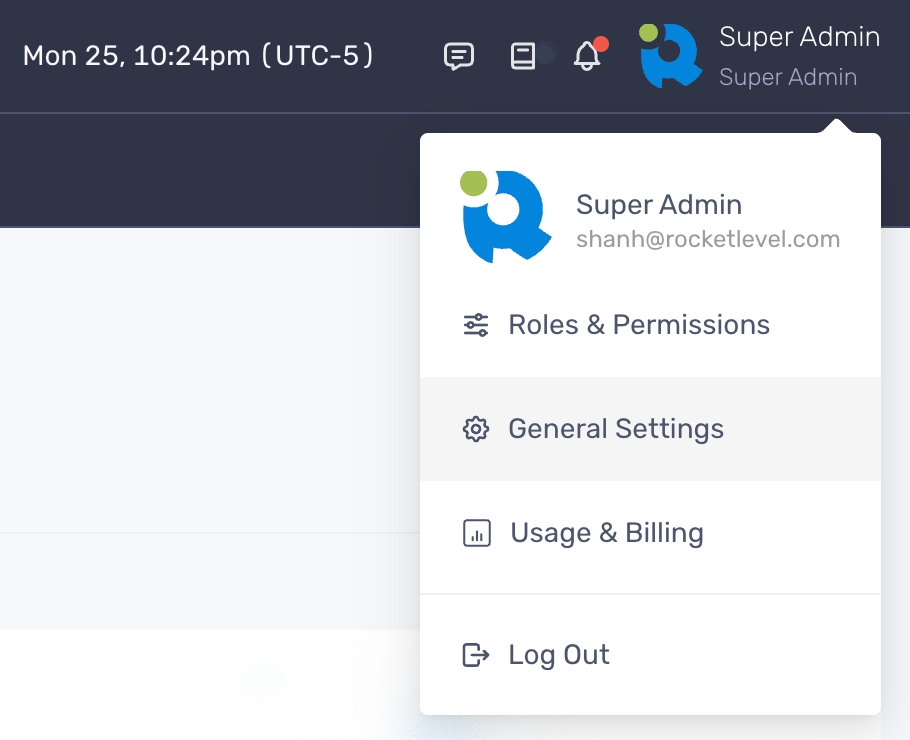
- Navigate to your profile picture on the upper right corner and select General Settings
- Click Social Profiles from the menu on the right-hand side
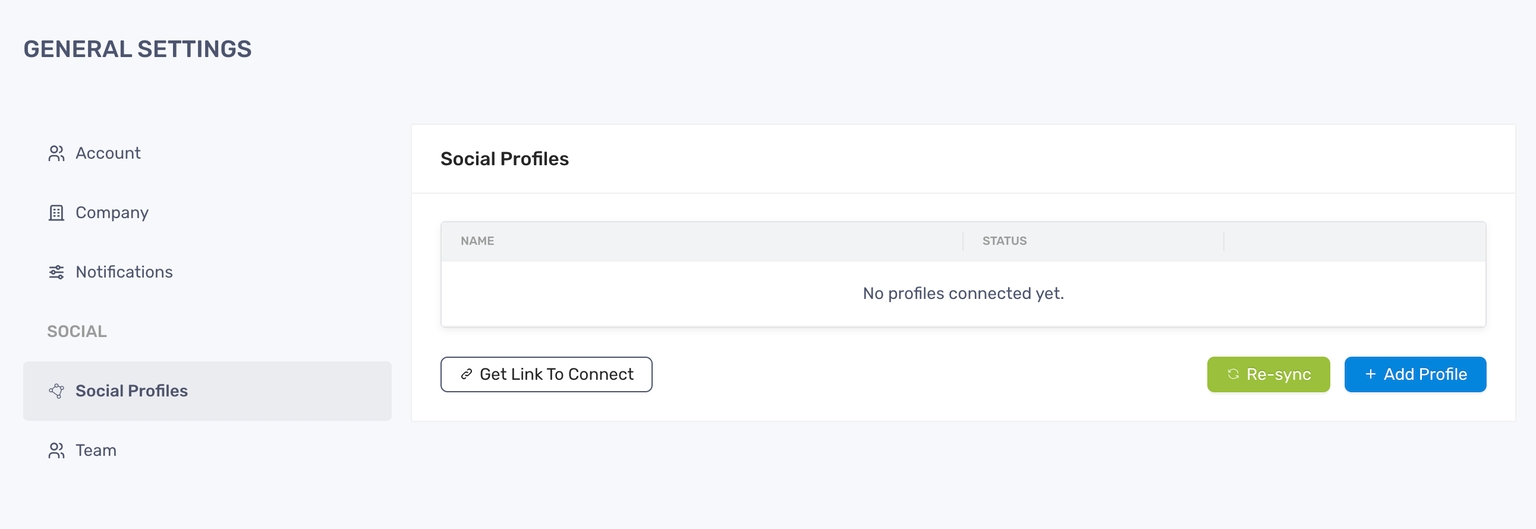
- Click “Add Profile” and you’ll be re-directed to the Social Account linkable page
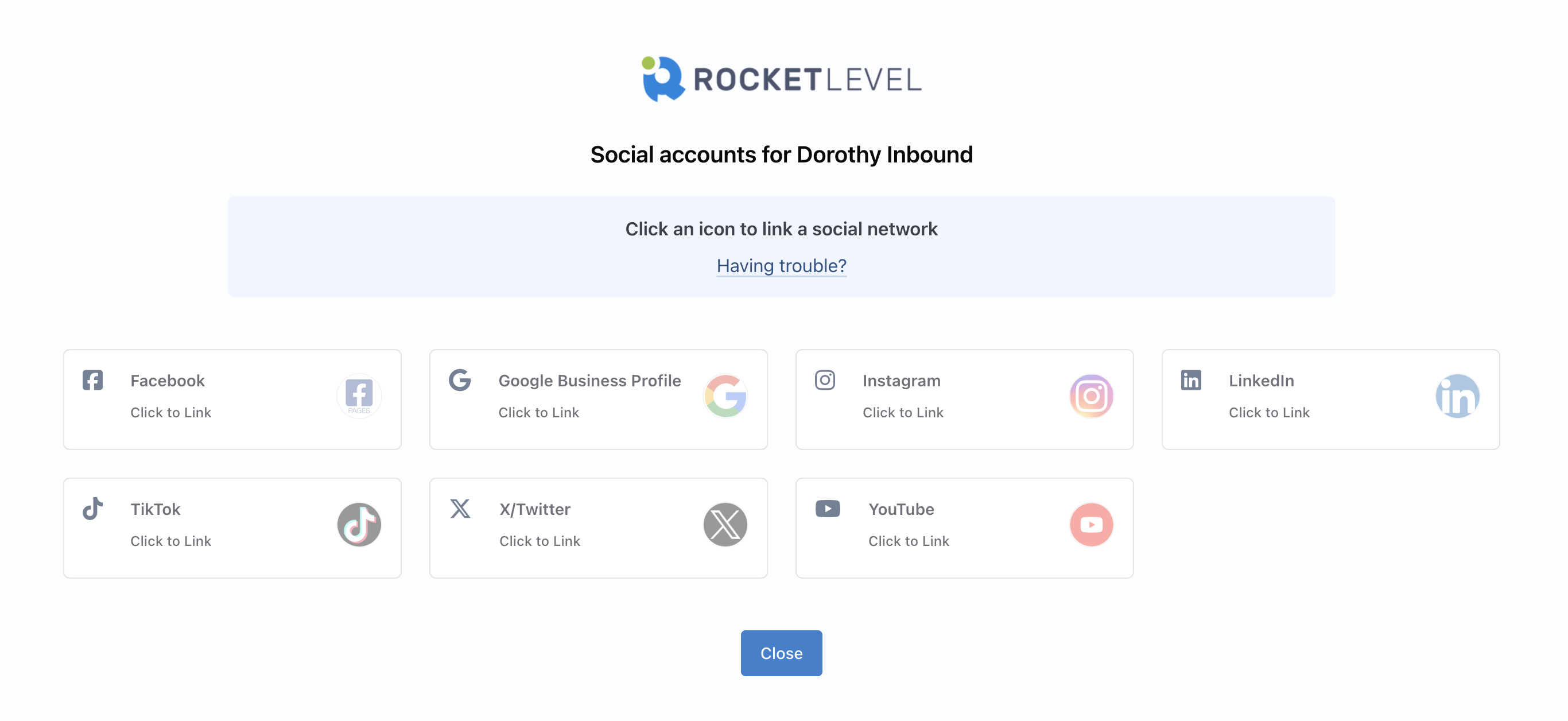
- On that page, just click the social network you want to connect
- Follow the login prompts to authenticate your social profile
- Once the social network has been authorized, you’ll see your account logo (if available) and the card color will change to green, indicating your link is active
- Click “Close” to return to General Settings and you’ll see your connected profile there
Remove a social profile
Section titled “Remove a social profile”- Go to app.rocketlevel.com and log in to your account
- Select “General Settings” from the dropdown menu
- Click Social Profiles from the menu on the right-hand side
- Click “Remove” next to the social profile you want to remove
- Click “Remove” to confirm then the profile will no longer shown
Once the account has been removed, all access tokens and authorisations are deleted from RocketLevel and are not recoverable.