

Manage User Profile
In General Settings, you can manage your personal account preferences, such as profile picture, reset password, report delivery frequency and other advanced settings.
Locate the General Settings
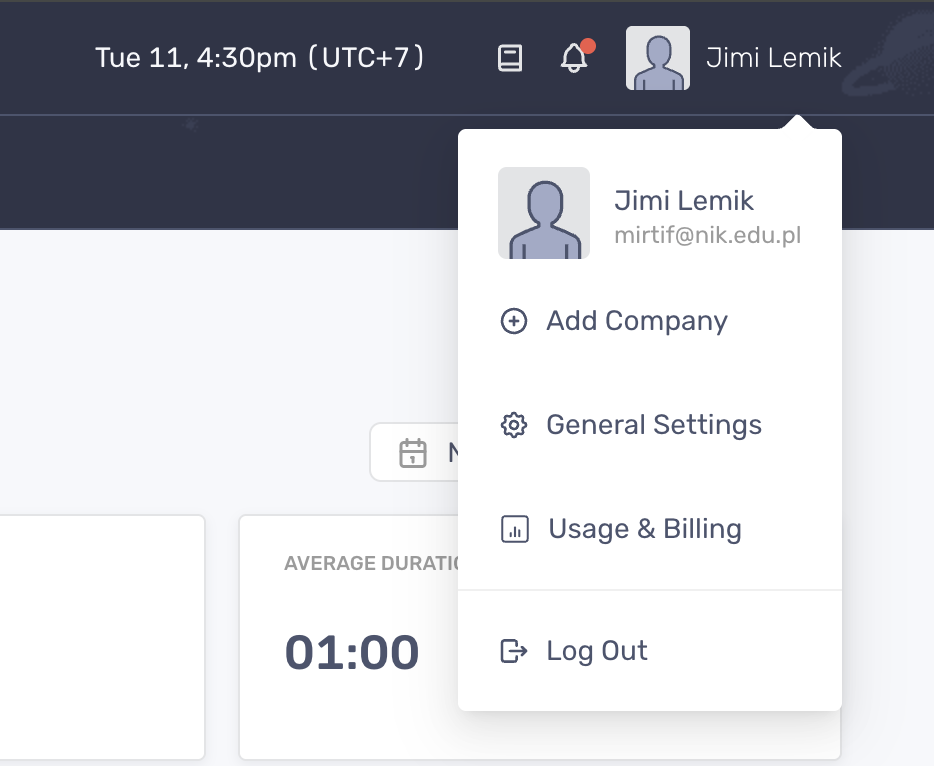
Section titled “Locate the General Settings”To locate the Genera Settings, click your profile picture at the top right corner. Select General Settings from the drop-down menu.
User profile picture
Section titled “User profile picture”To change the user profile picture:
- Navigate to General Settings > Account
- Click the icon in the corner of your current profile picture
- Select a picture from your local directory and upload it to the app
- Click “Save Changes” to finish
User information
Section titled “User information”To change user information:
Section titled “To change user information:”- Navigate to General Settings > Account
- Enter new values in the fields: First Name, Last Name, Business Phone
- Scroll down more to see how to update Business Email
- Click “Save Changes” to finish
To change the Business Email
Section titled “To change the Business Email”- Navigate to General Settings > Account
- Enter the new email in the field Business Email
- Click “Save Changes” and you’ll see the popup to confirm the new email
- Click “Send Confirmation Email”
- In your inbox, locate and open the confirmation email
- Click “Confirm Email Change” in the email
- Your new email is confirmed on the new tab, and you can close the previous tab
- Log out and log back in with your new email
To reset password:
Section titled “To reset password:”- Navigate to General Settings > Account
- Click “Reset Password”
- Enter the required fields on the Reset Password panel
- Click “Save Changes” to finish
- Log out and log back in with your new password