

Manage Company
You can have multiple companies under the same RocketLevel account. You can also access all of them via one single sign-in, so that you can switch between companies easily and manage everything in a few clicks.
Locate your companies
Section titled “Locate your companies”- Go to app.rocketlevel.com
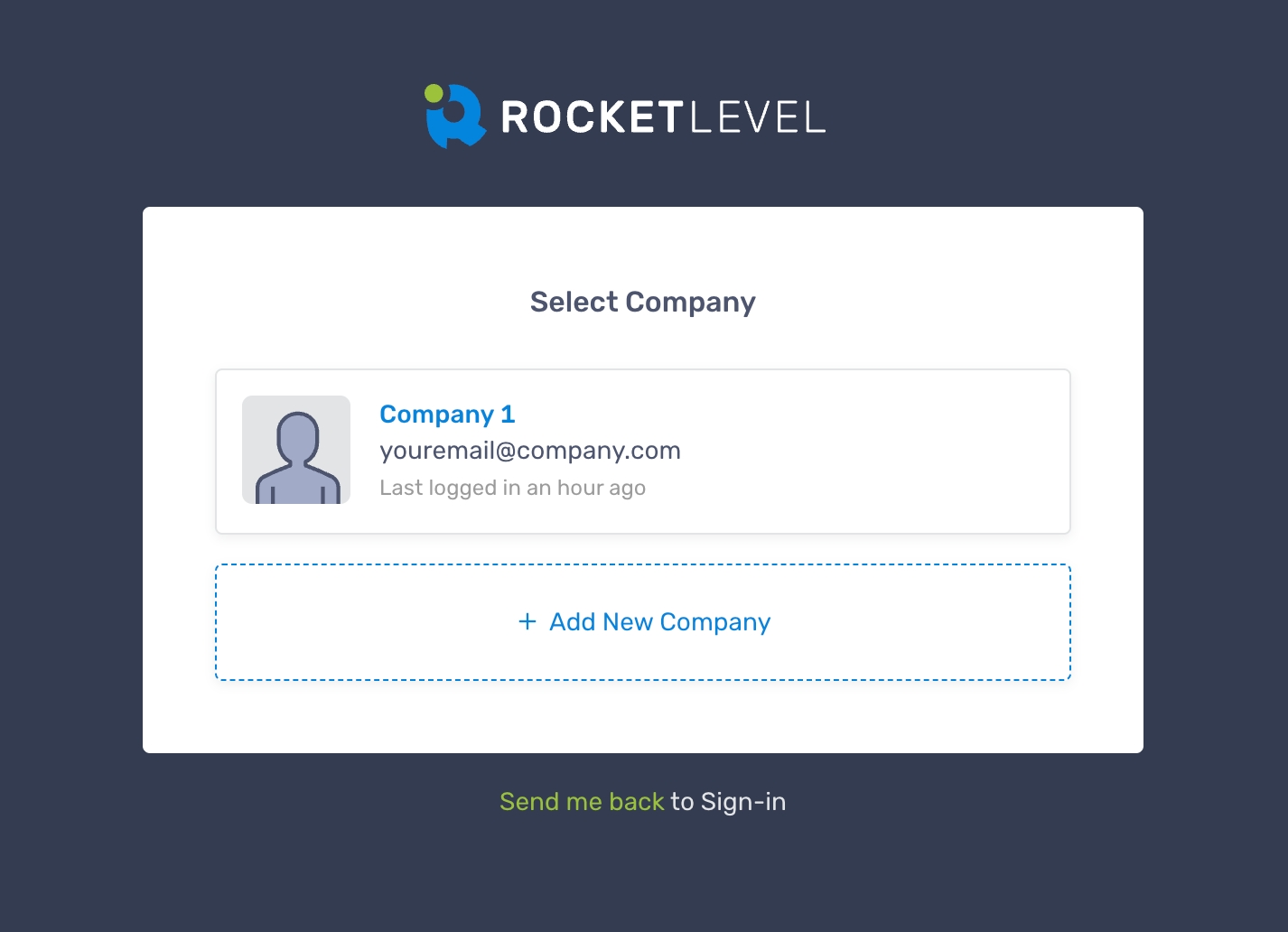
- Log in to your account and you see the the list of existing companies
- Go to the company by clicking the company
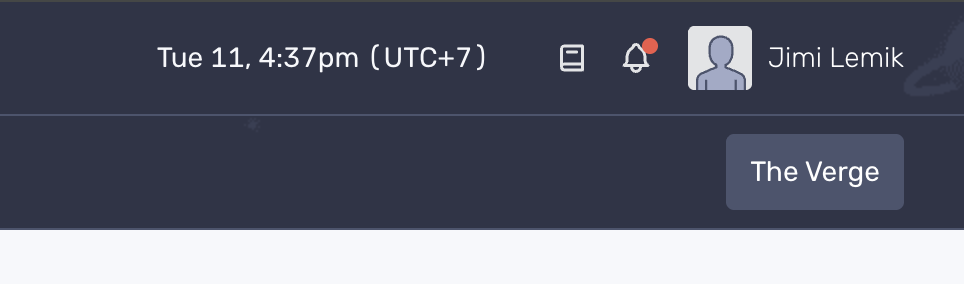
- To switch the company, navigate to the top right area, next to the Time Zone
Add a new company
Section titled “Add a new company”- Go to app.rocketlevel.com
- Log in to your account and you see the the list of existing companies
- Click “Add New Company”
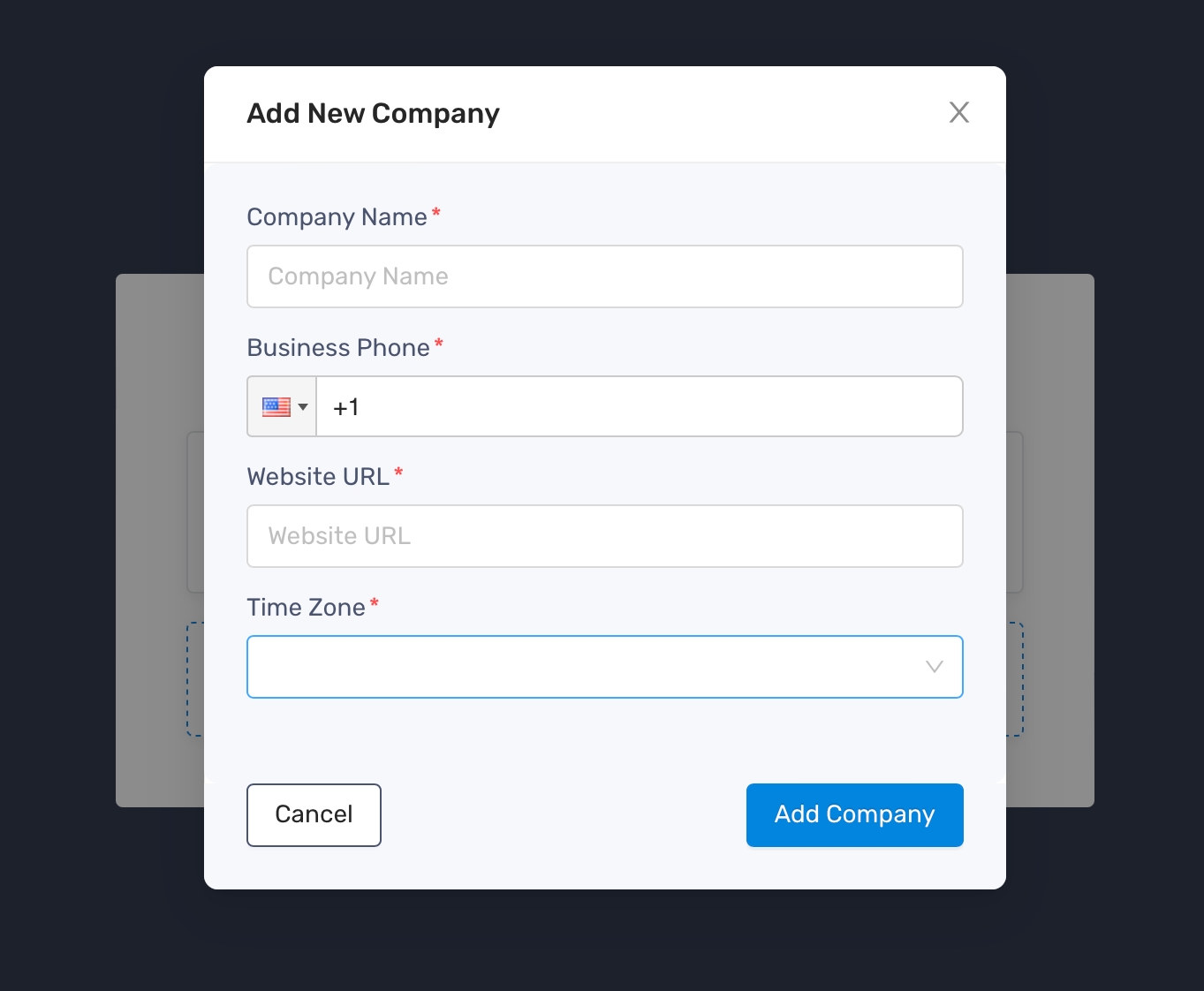
- Enter Company Name, Business Phone, Website URL and select the Time Zone of your choice
- Click “Add Company” to finish
Delete a new company
Section titled “Delete a new company”- Go to app.rocketlevel.com
- Log in to your account and you see the the list of existing companies
- Click the “Delete” icon on the company you want to delete

- Click “Delete” to finish
Edit company’s information
Section titled “Edit company’s information”- Log in to your account on app.rocketlevel.com
- Click your profile picture at the top right corner and select General Settings
- Select “Company” tab on the left menu
- Edit the company’s information and click Save Changes to finish